
Get 302.AI API Key
Learn how to get a 302.AI API Key and use it in OpenKoto.
Introduction
302.AI is a pay-as-you-go AI resource marketplace offering a wide range of models. This guide shows you how to obtain an API Key and configure it in OpenKoto.
We highly recommend using Gemini 3 Pro and Gemini 3 Flash for the best balance of performance and cost.
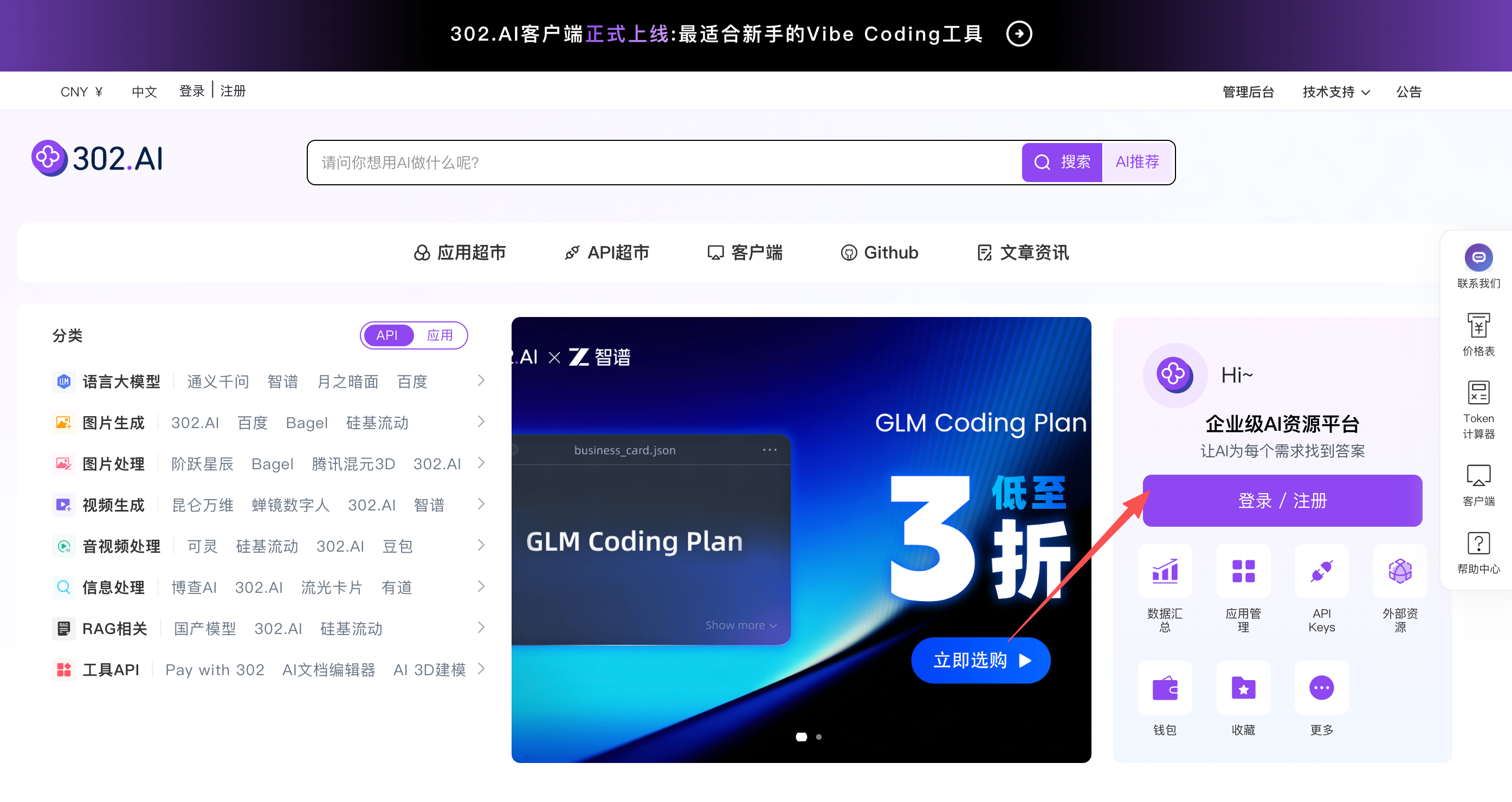
Step 1: Visit 302.AI
Go to the 302.AI official website and log in. Click "Start with this" on the home page.
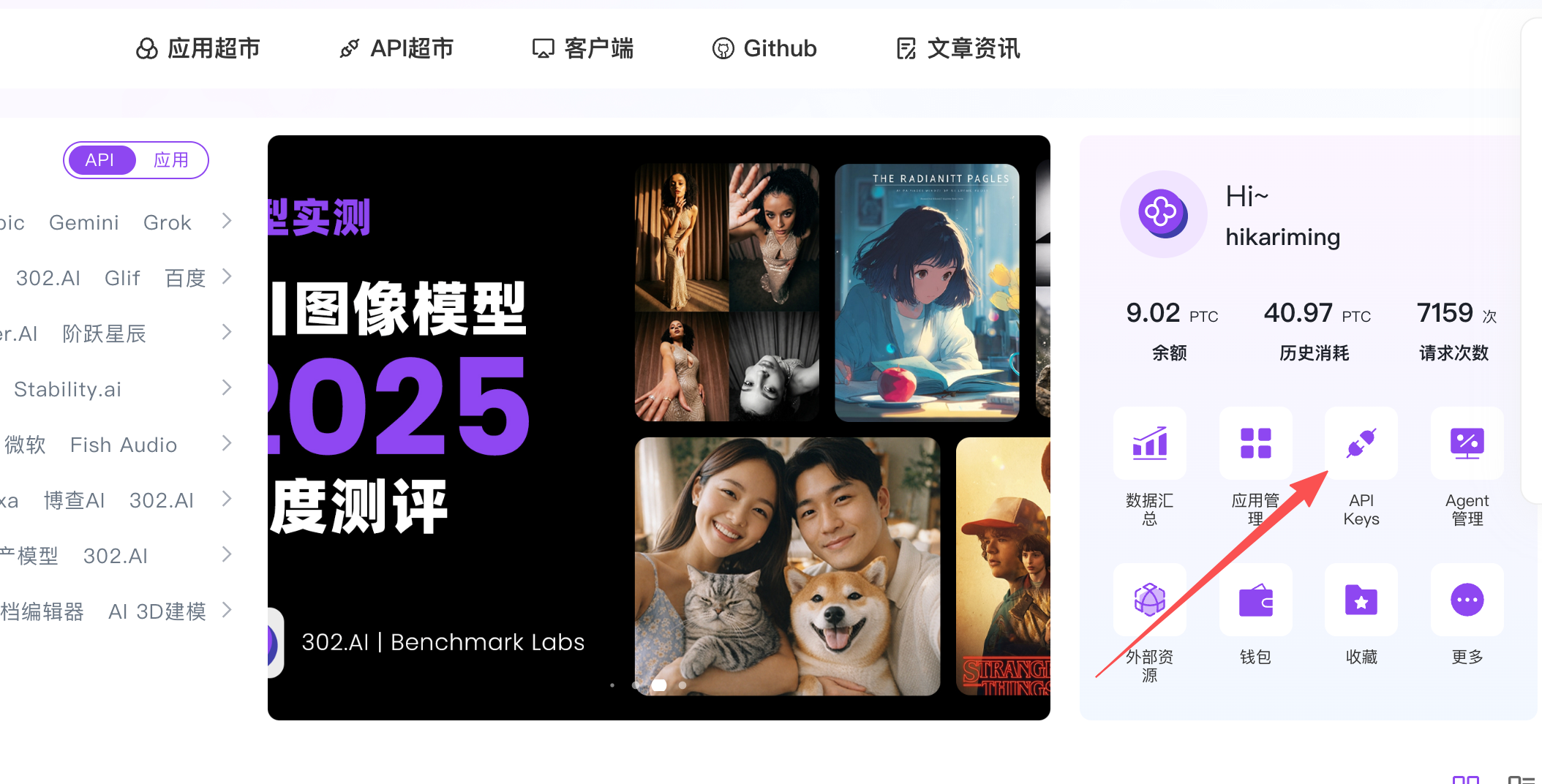
Step 2: Create API Key
In the API menu, click "Add Token" or a similar button.
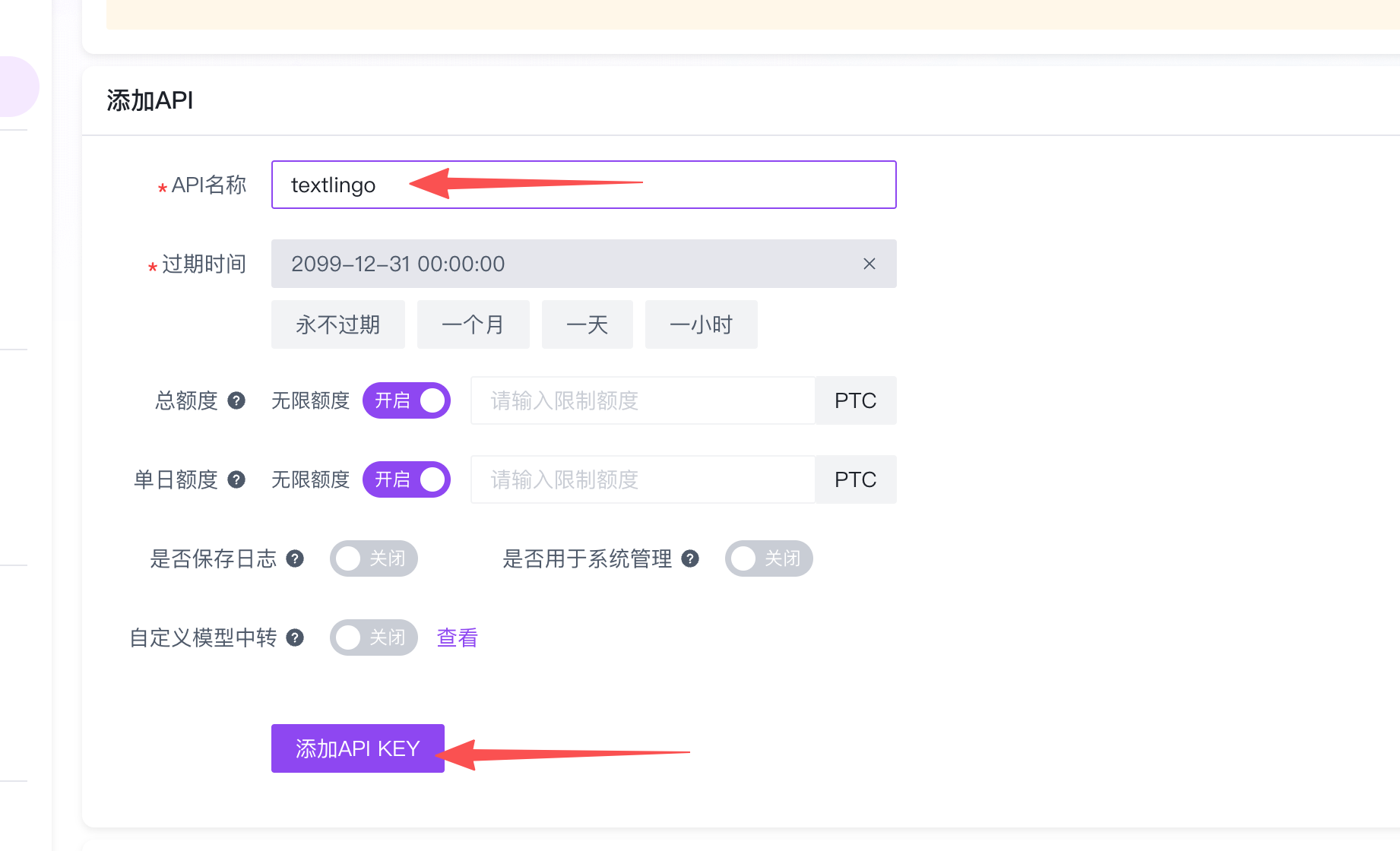
In the dialog box, name your Key and set a quota if necessary.
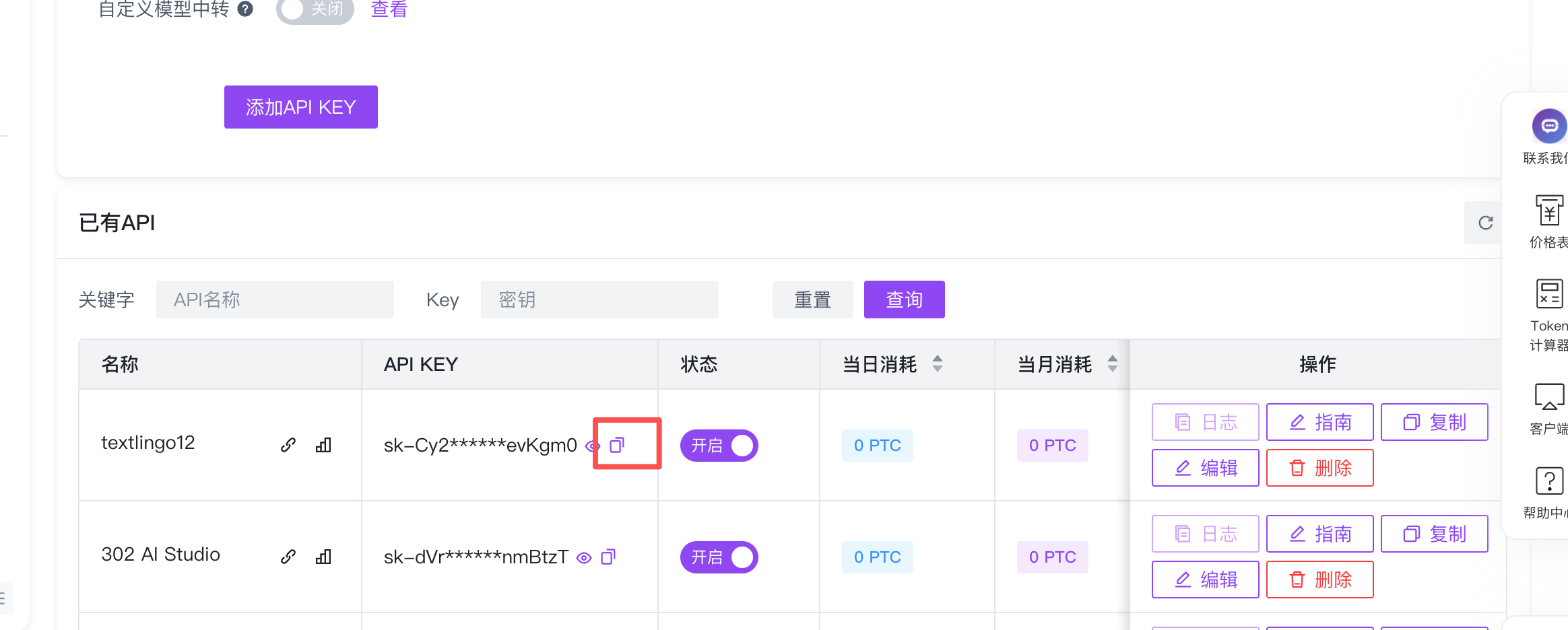
Step 3: Copy Your Key
Once generated, click the copy button to save the API Key to your clipboard.
Step 4: Configure in OpenKoto
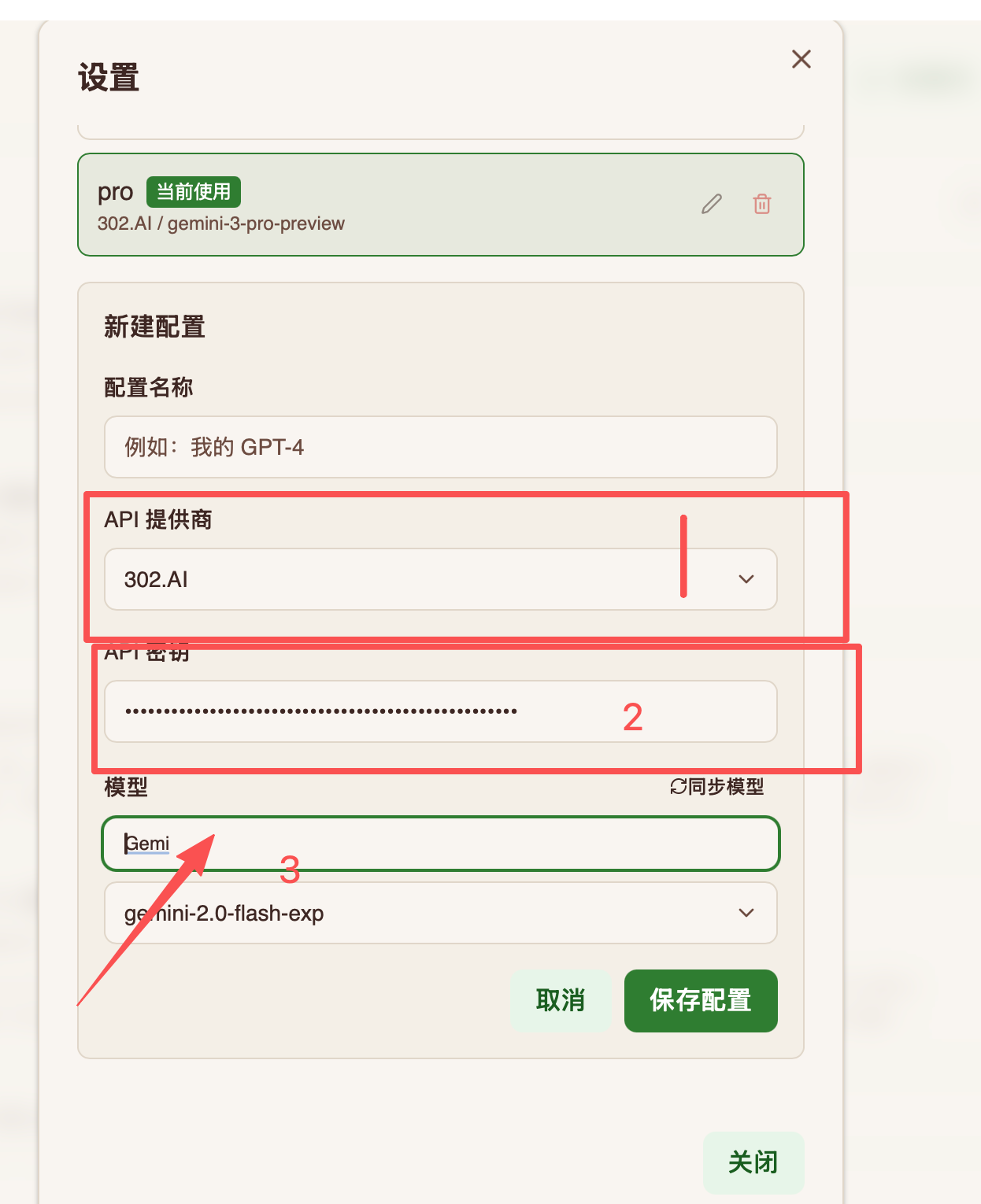
Open OpenKoto, go to Settings > Model Providers, and select OpenAI Compatible (or the dedicated 302.AI option if available).
- API Key: Paste the Key you just copied.
- API Endpoint: Enter the 302.AI API endpoint (usually
https://api.302.ai). - Model Filtering: As shown below, you can type or filter the models you need in the model name field. We recommend searching for and using gemini-3-flash and gemini-3-pro.
Recommended Models
We suggest configuring the following models:
Gemini 3 Pro
- Features: Exceptional logical reasoning, ideal for complex analysis and deep translation.
- Best for: Intensive reading, academic paper analysis, complex grammar breakdown.
Gemini 3 Flash
- Features: Extremely fast response times and lightweight.
- Best for: Quick translations, daily article reading, instant chat.